TMaRS provides reporting tools to track training completion, view individual training histories, and generate compliance reports. Use these reports for audits, certifications, and tracking training program effectiveness.
Reports Admin - Full reporting access including sensitive data
Different reports may have additional attribute requirements.
TMaRS includes two primary reports for tracking training:
Persons Training History - View all training for a specific person
Completion Report - Generate lists of people who completed specific courses
Accessing Reports
To access reports:
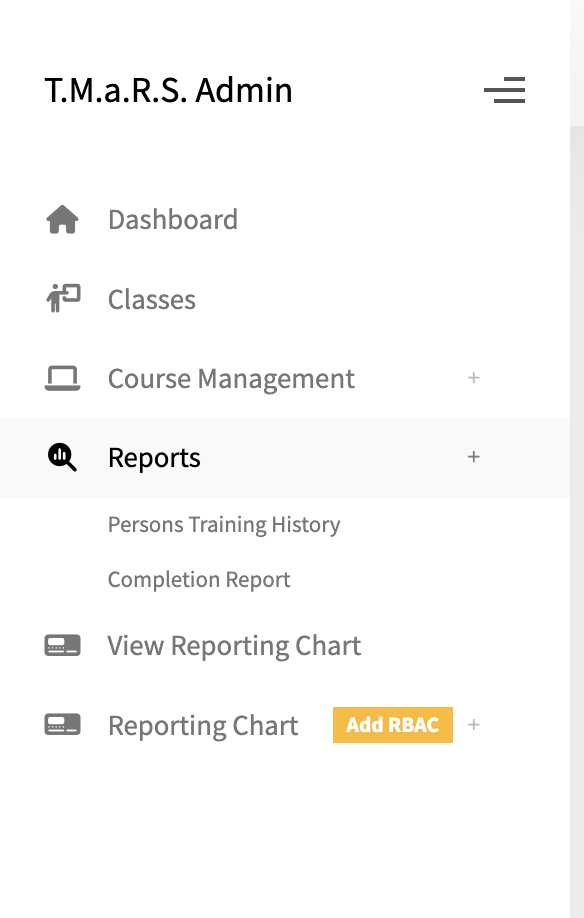
Navigate to Reports in the sidebar
Click on the report you want to run:
Persons Training History
Completion Report
Persons Training History
Persons Training History
The Persons Training History report shows all training records for a specific individual. This is useful for:
Looking up someone's training transcript
Verifying certification status
Checking if someone has completed required training
Reviewing someone's training history for audits
Running the Report
Search for Training History
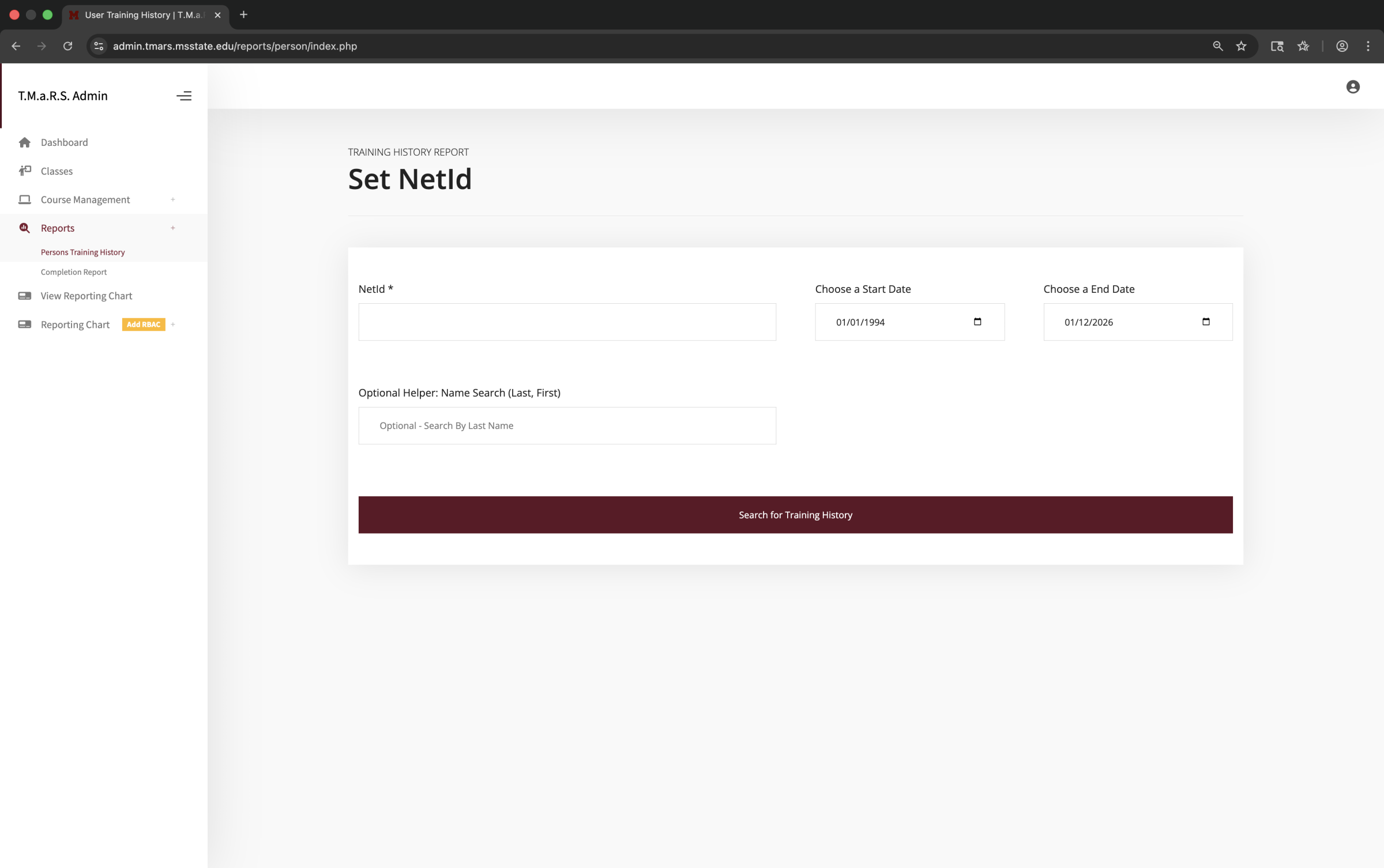
To generate a training history report:
Navigate to Reports → Persons Training History
Enter the person's NetId
Choose Start Date and End Date for the report range
Optionally use the name search if you don't know their NetID
Click Search for Training History
Report Parameters
Field
Description
Required
NetId
The person's university NetID. This is the primary search field.
Yes (or use name search)
Choose a Start Date
Beginning of date range. Default is 01/01/1994 (beginning of records).
Yes
Choose an End Date
End of date range. Default is today's date.
Yes
Optional Helper: Name Search
Search by last name, first name if you don't know the NetID.
No
Tip: The default date range covers all training records in the system. If you only need recent training, narrow the date range to improve performance and readability.
Understanding the Results
Training History Results
Training History Results
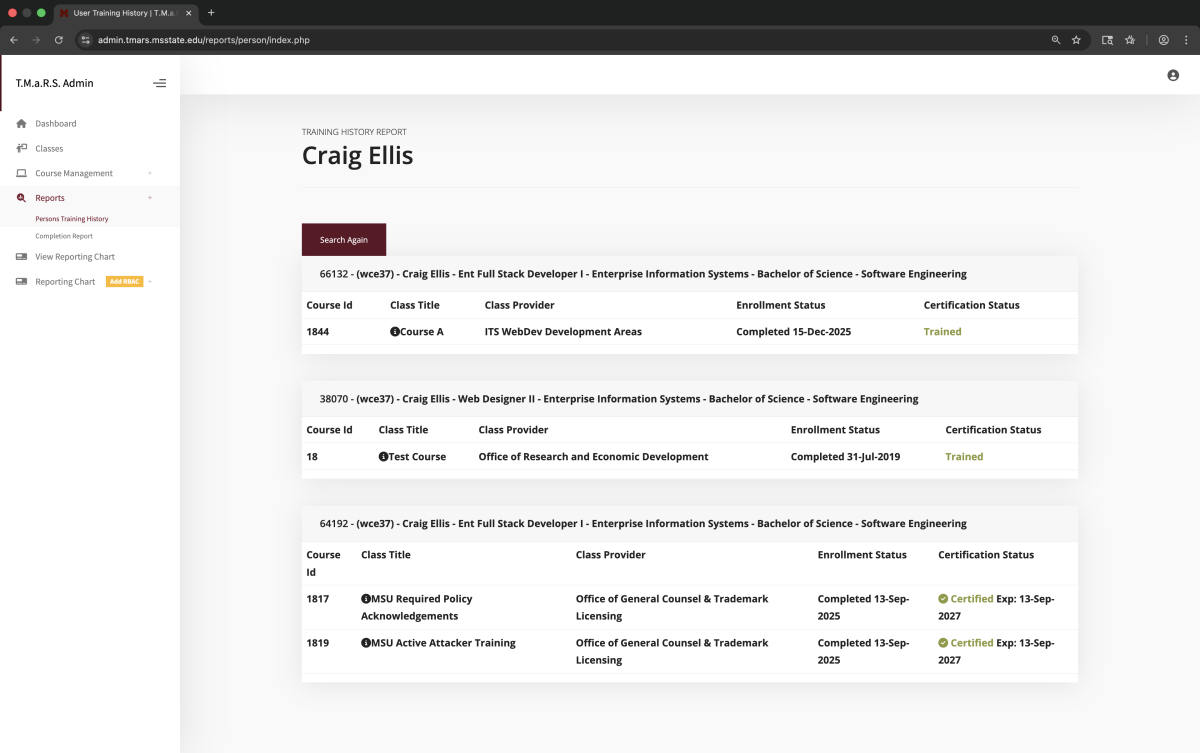
The results page shows the person's full name and employee information at the top, followed by their training history organized by their different job positions (each with a unique MSU ID).
Each section lists classes they've taken, showing course ID, class title, provider, enrollment status, and certification status.
The report displays training grouped by the person's job records. Each group shows:
Header line - MSU ID, NetID, Name, Job Title, Department, Status, Degree info
Training table with columns:
Course Id - Unique course identifier
Class Title - Name of the class
Class Provider - Which organizational unit offered it
Enrollment Status - Enrolled, Completed, Cancelled, etc.
Certification Status - Trained, Not Certified, or Expired with expiration date
Certification Status Indicators
The Certification Status column uses color-coded indicators:
Trained (green) - Certification is current and valid
Not Certified (red) - Did not complete or was cancelled
Expired (red) - Certification has expired with expiration date shown
About Multiple Job Records
If a person has held multiple positions at MSU, they'll have separate sections for each job record. This is normal and allows tracking training across their entire career at the university.
Completion Report
Completion Report
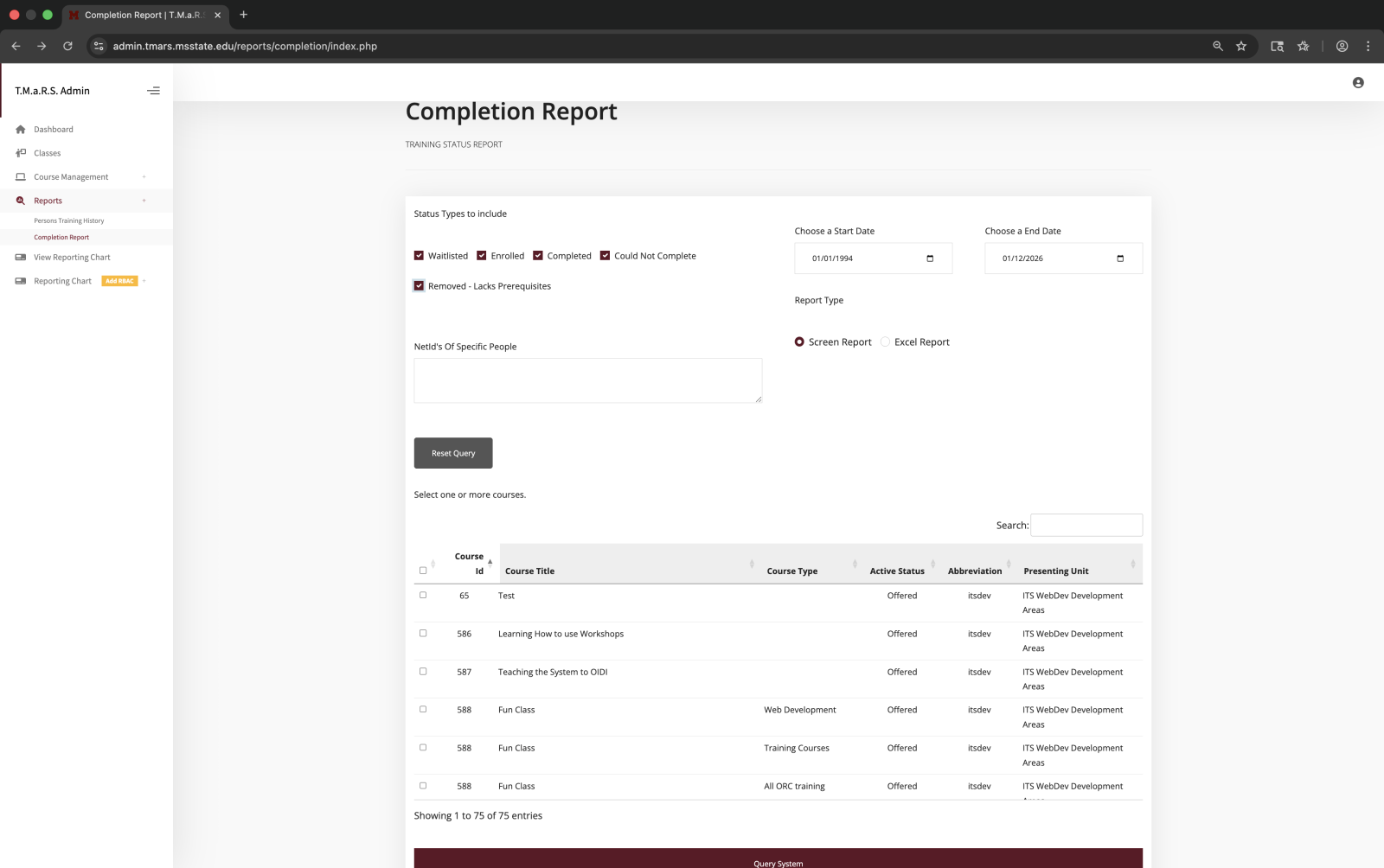
The Completion Report generates lists of people who have taken specific courses within a date range. This report is ideal for:
Check which enrollment statuses to include in results:
Waitlisted
Enrolled
Completed
Could Not Complete
Removed - Lacks Prerequisites
Typically, check all or just "Completed" for compliance reports.
Choose a Start Date
Beginning of date range. Default is 01/01/1994.
Choose an End Date
End of date range. Default is today.
Report Type
Screen Report - View results on screen with interactive table Excel Report - Download results as Excel file (.xlsx)
NetId's Of Specific People
Optional: Enter specific NetIDs (one per line or comma-separated) to limit results to only those people. Leave blank to include everyone.
Course Selection
Check one or more courses from the table. Use the search box to find specific courses. You can select multiple courses to combine results.
Tip: Use the course table search box to quickly find courses by name or abbreviation. You can select multiple courses to see who completed any of them during the date range.
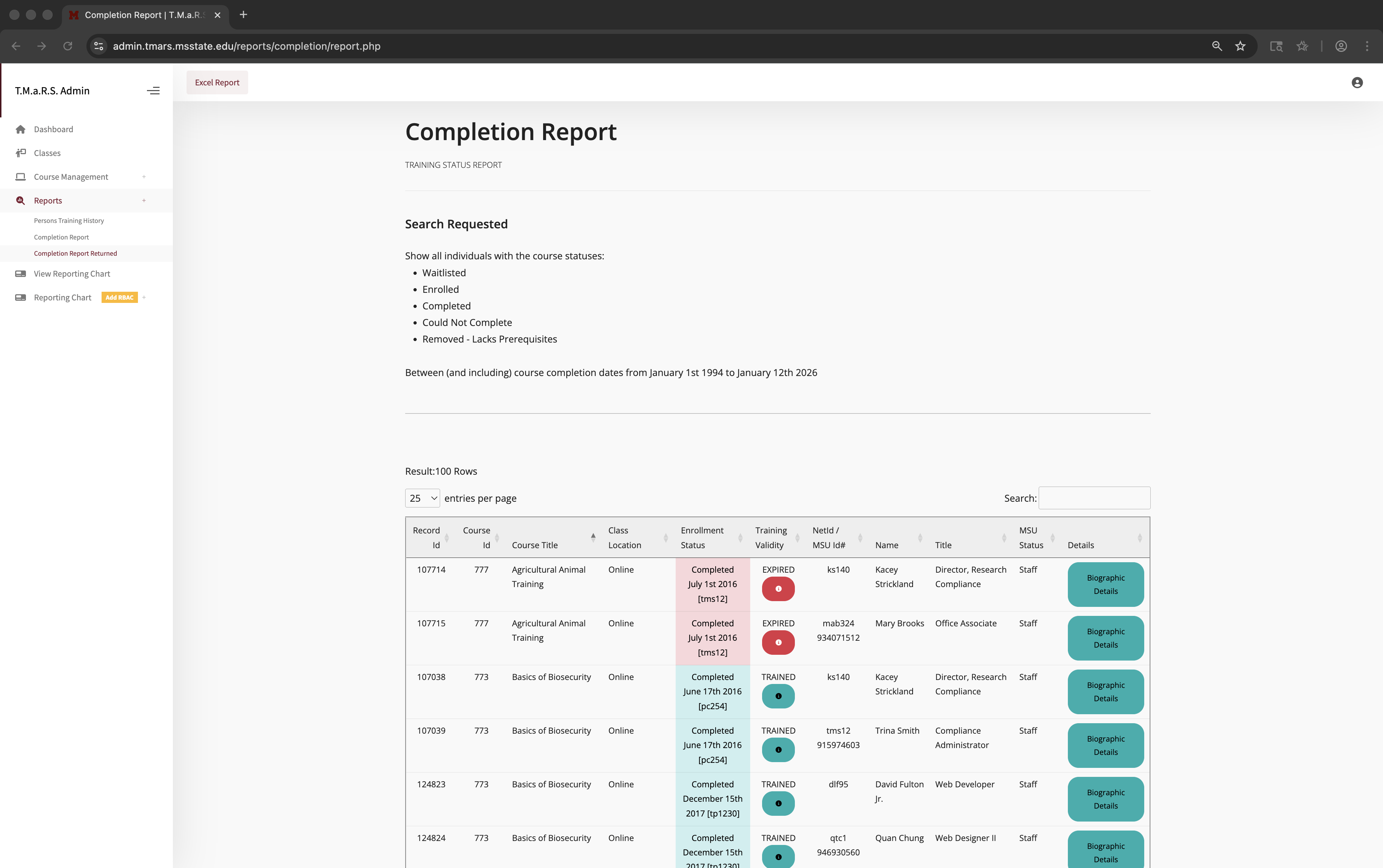
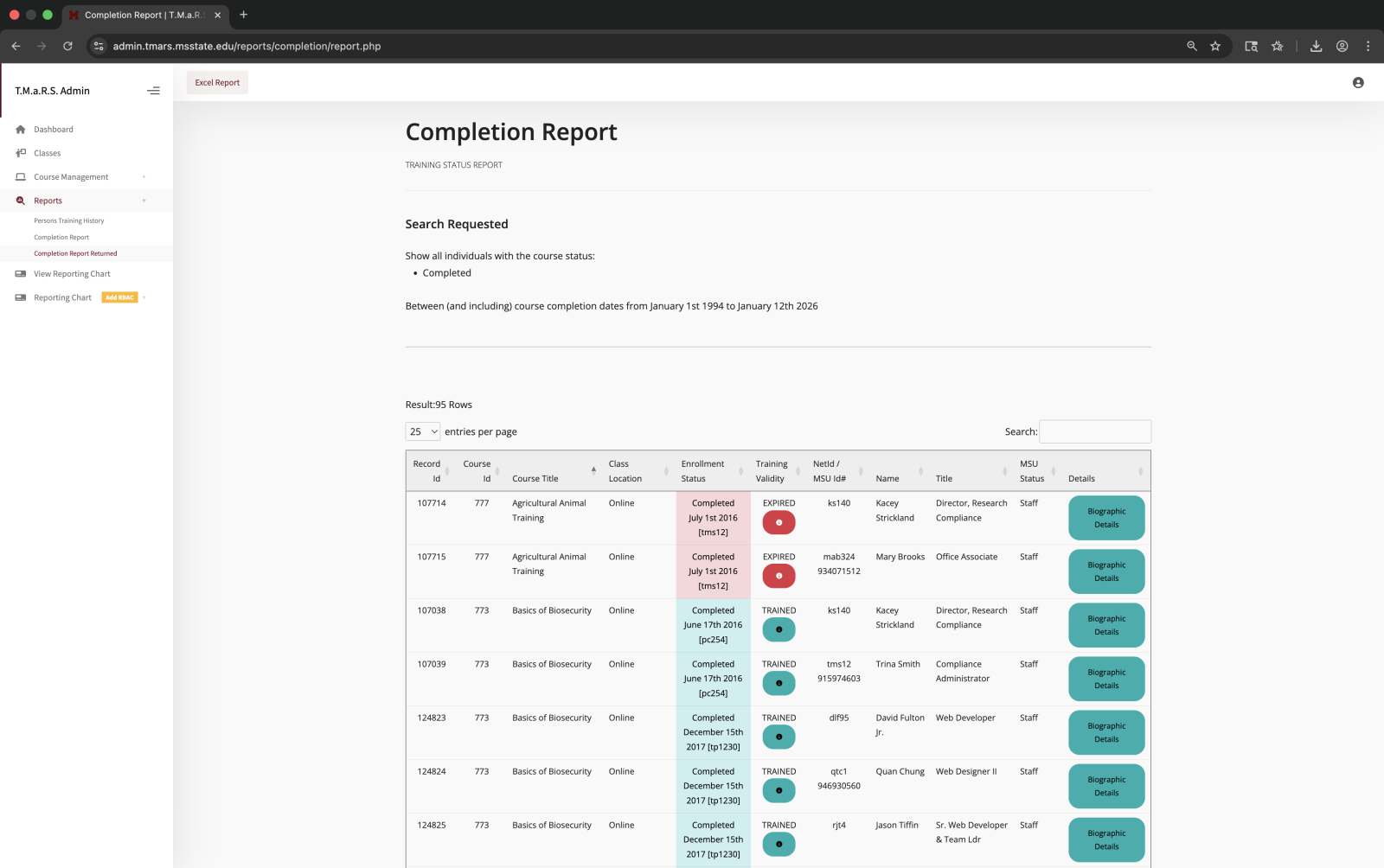
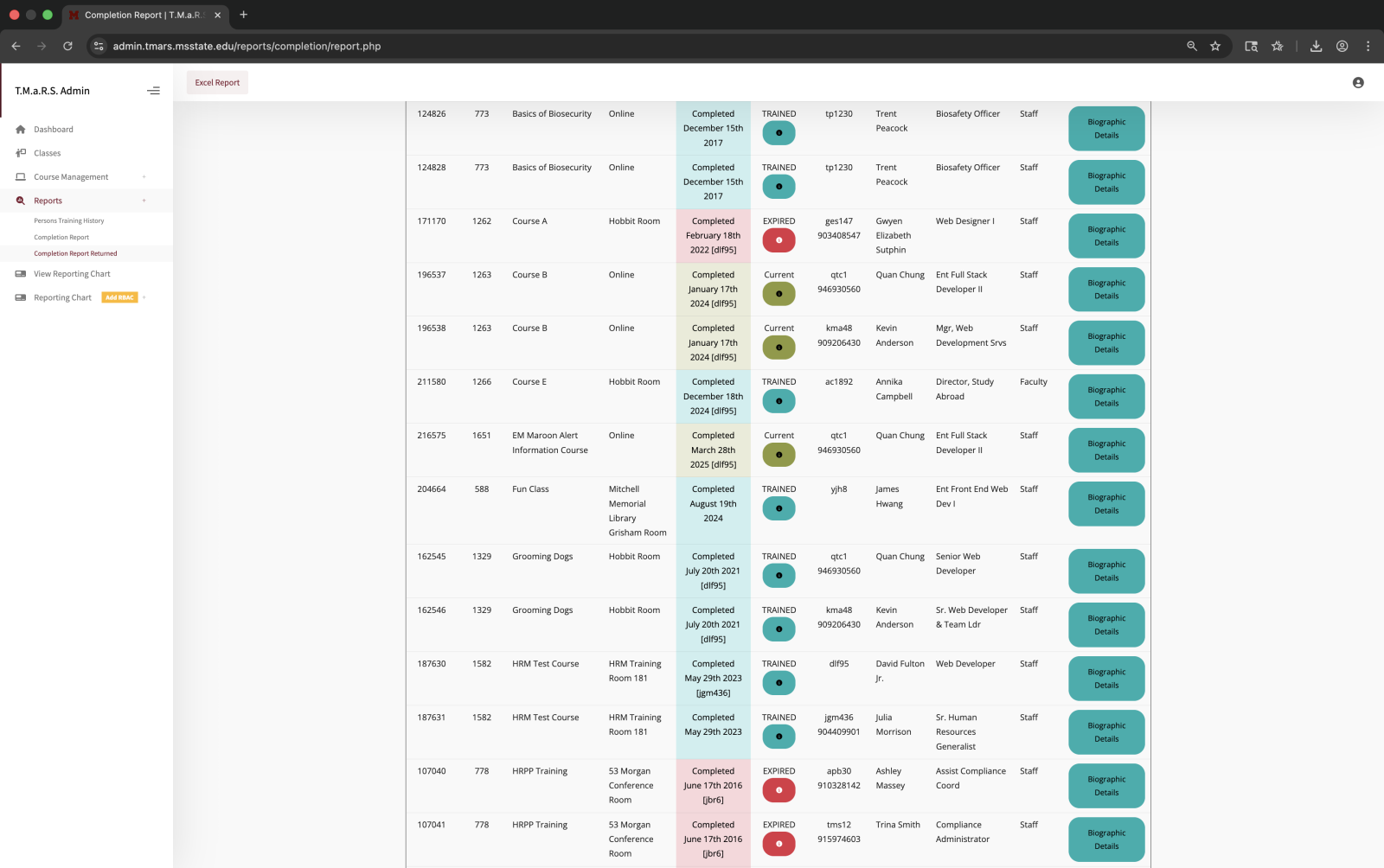
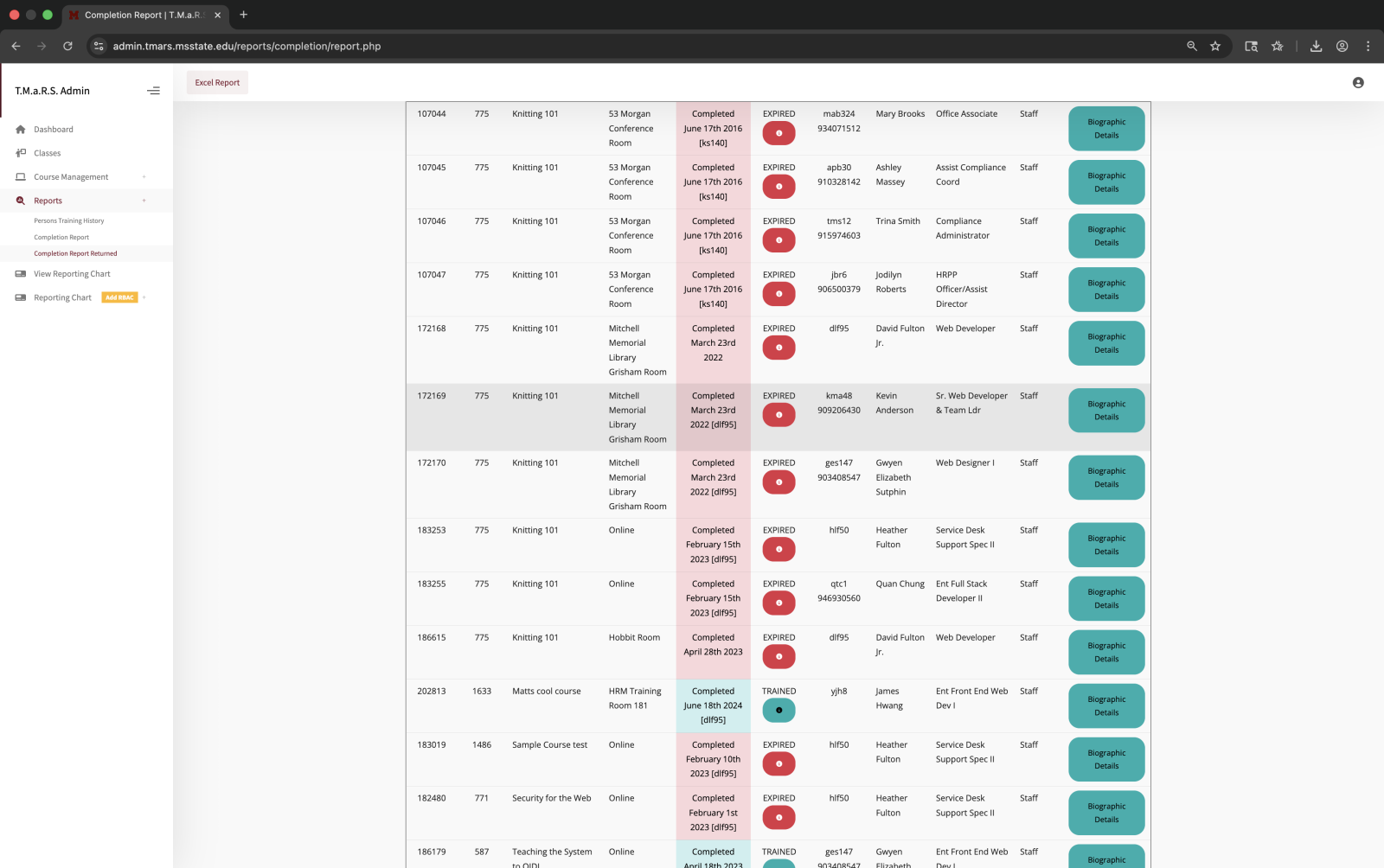
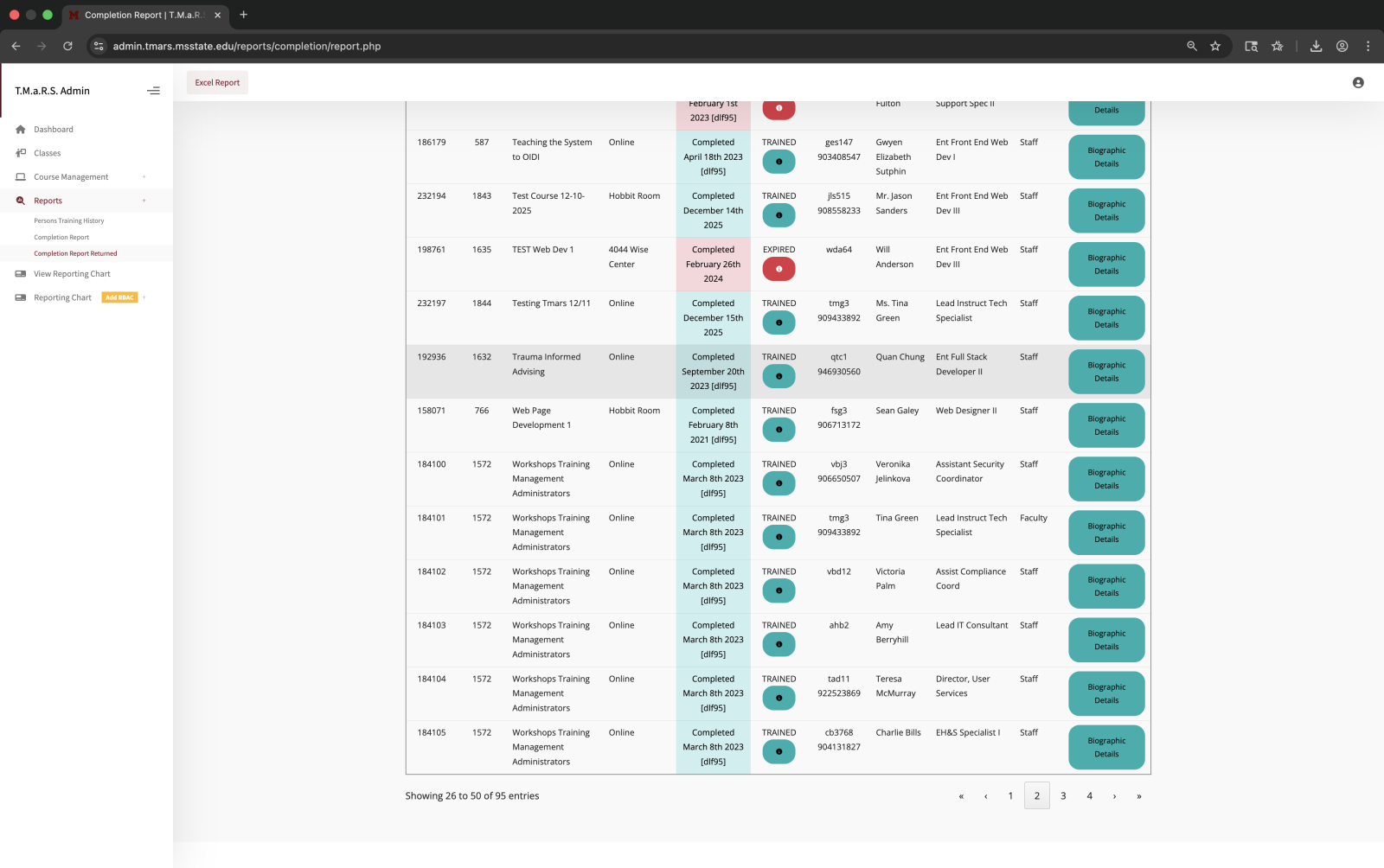
Screen Report Results
If you selected Screen Report, the results display on screen in an interactive table.
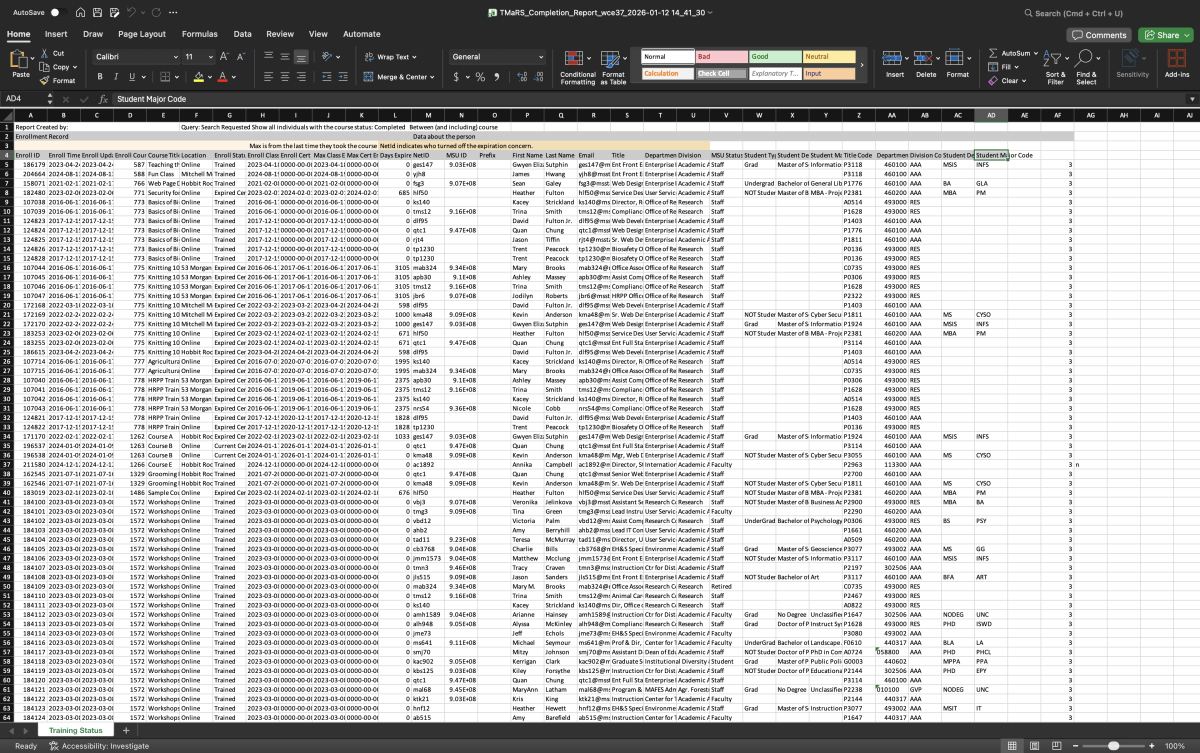
Employment info (title, department, division, codes)
Student info (if applicable - type, degree, major)
The Excel report includes over 30 columns of data, making it ideal for:
Importing into other systems
Advanced filtering and analysis in Excel
Creating pivot tables
Compliance documentation
Long-term record keeping
Best Practices
For quick checks: Use Screen Report to view results immediately For compliance/audits: Use Excel Report to download complete data For regular reporting: Save your Excel reports with descriptive filenames including date and course name
Common Use Cases
Annual compliance report:
Select status: Completed only
Date range: January 1 to December 31 of the year
Select all required training courses
Report type: Excel Report
Generate and save
Find who needs refresher training:
Select status: Completed only
Date range: Older than certification period (e.g., 2 years ago)
Select the course
Report type: Screen Report
These people need to retake the course
Check specific department compliance:
Get NetIDs for department members
Paste NetIDs in "NetId's Of Specific People" field