Managing Courses

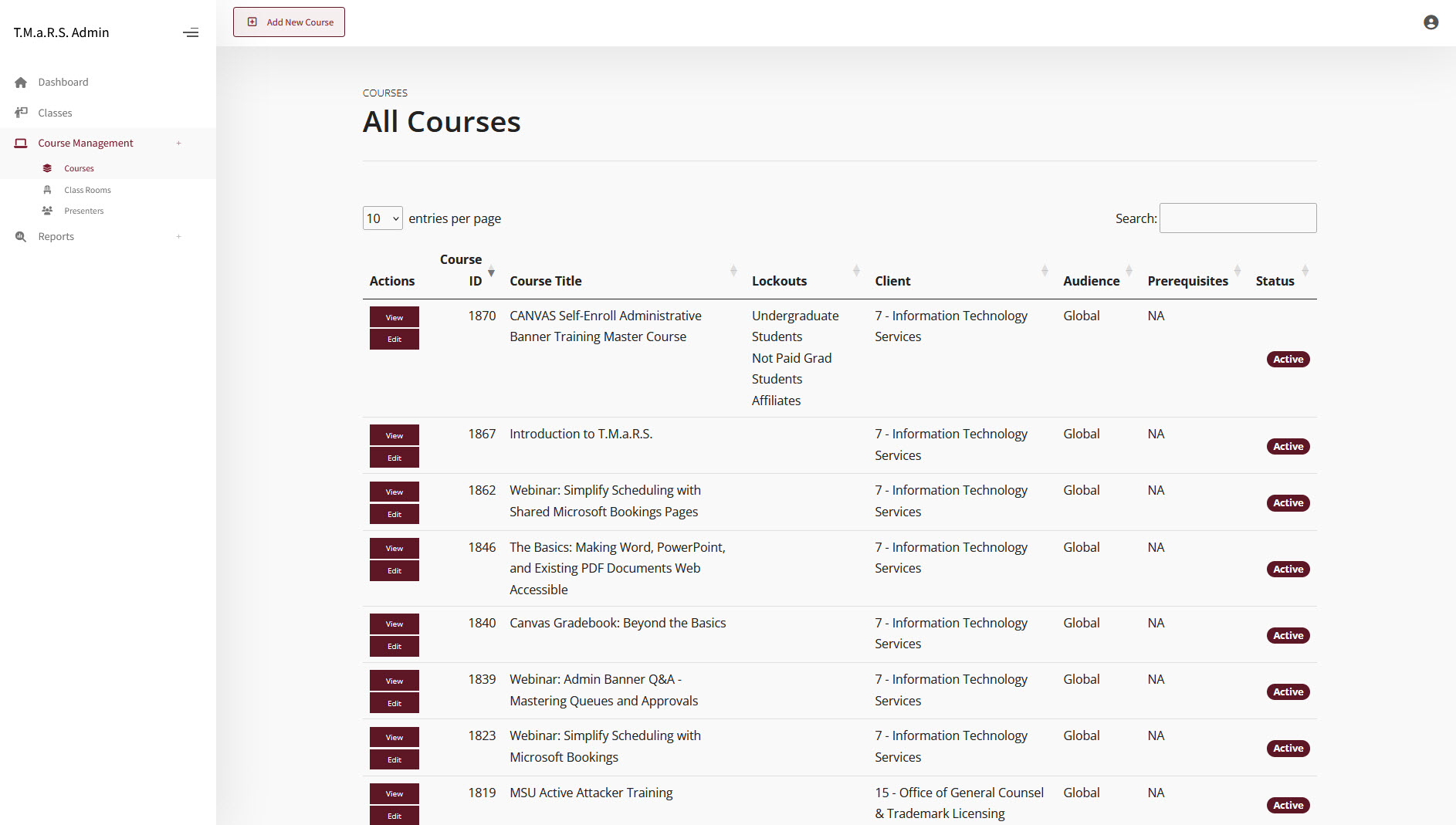
All Courses Overview Page

What are Courses?

A course is a training catalog template that defines the curriculum, requirements, and settings for a type of training. Once you create a course, you can schedule it multiple times as different class sessions with specific dates, times, and locations.

Course vs Class: What's the Difference?

Course Class
The curriculum template A scheduled instance
Defines what will be taught Defines when and where it's taught
Created once, used many times Created for each specific session
Example: "Database Fundamentals" Example: "Database Fundamentals on Jan 15, 2:00 PM in Room 301"
Has description, prerequisites, certification info Has date, time, instructor, location, enrollment

Viewing All Courses

To view all courses in your client:

  1. Navigate to Course Management → Courses in the sidebar menu
  2. You'll see the All Courses page with a searchable table

Understanding the Courses Table

The courses table displays:

  1. Actions - View and Edit buttons for each course
  2. Course ID - Unique identifier assigned by the system
  3. Course Title - The name of the course
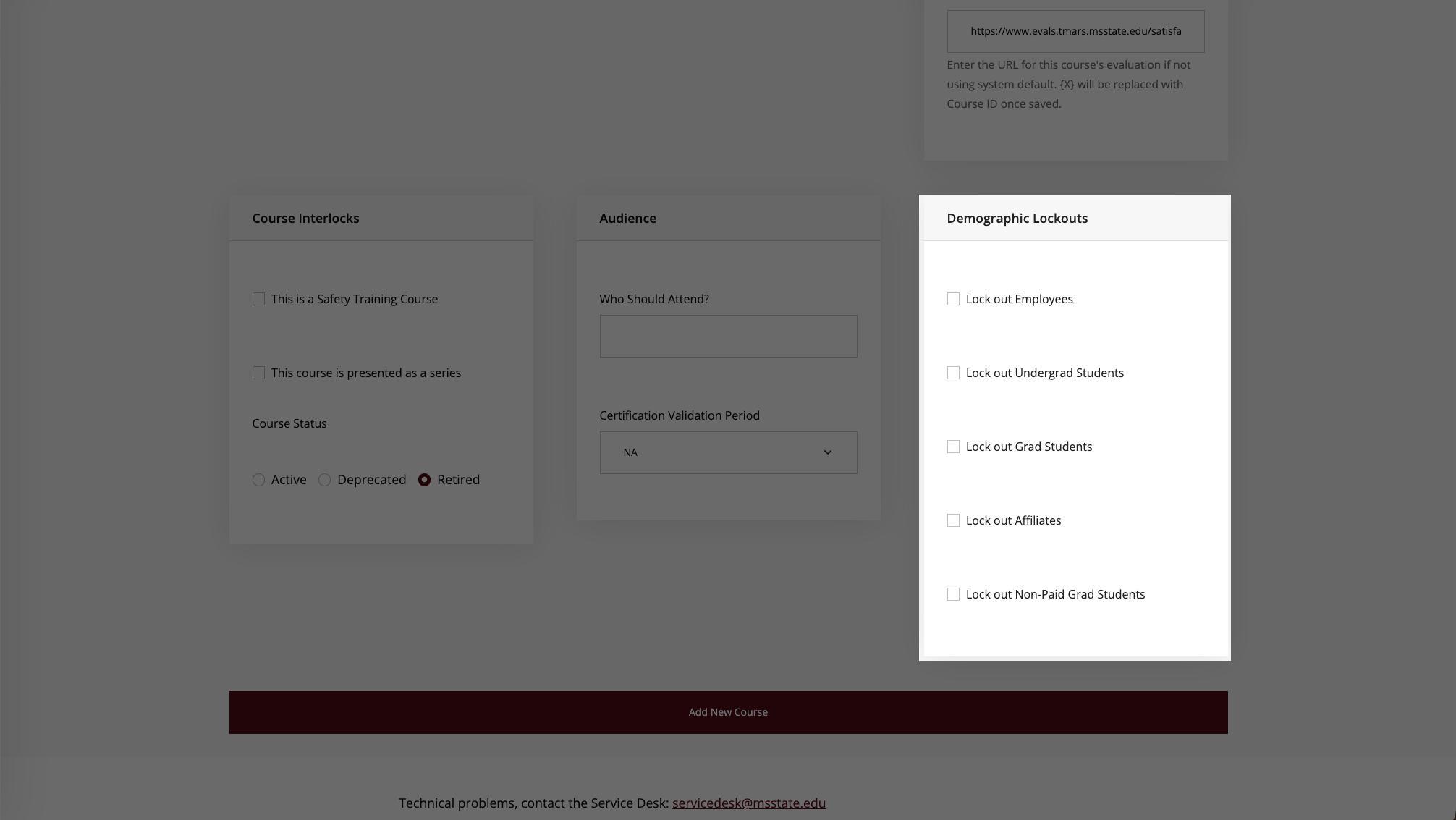
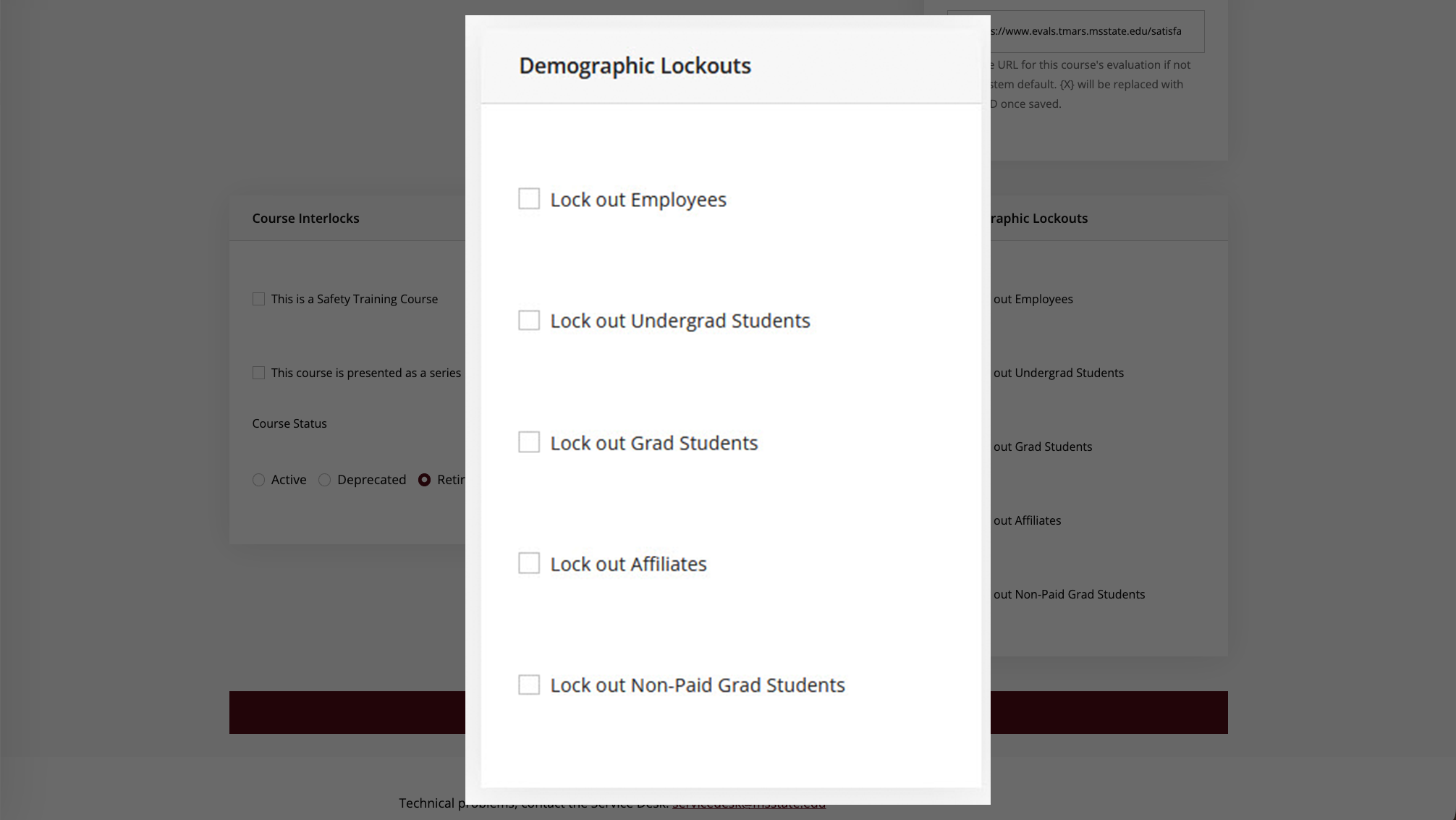
  4. Lockouts - Any demographic restrictions (if applicable)
  5. Client - Which organizational client owns this course
  6. Audience - Target audience (Global or specific groups)
  7. Prerequisites - Required prior courses (NA if none)
  8. Status - Active, Inactive, or Deprecated

Tip: Use the search box in the top right to quickly find courses by title or ID. You can also click column headers to sort.

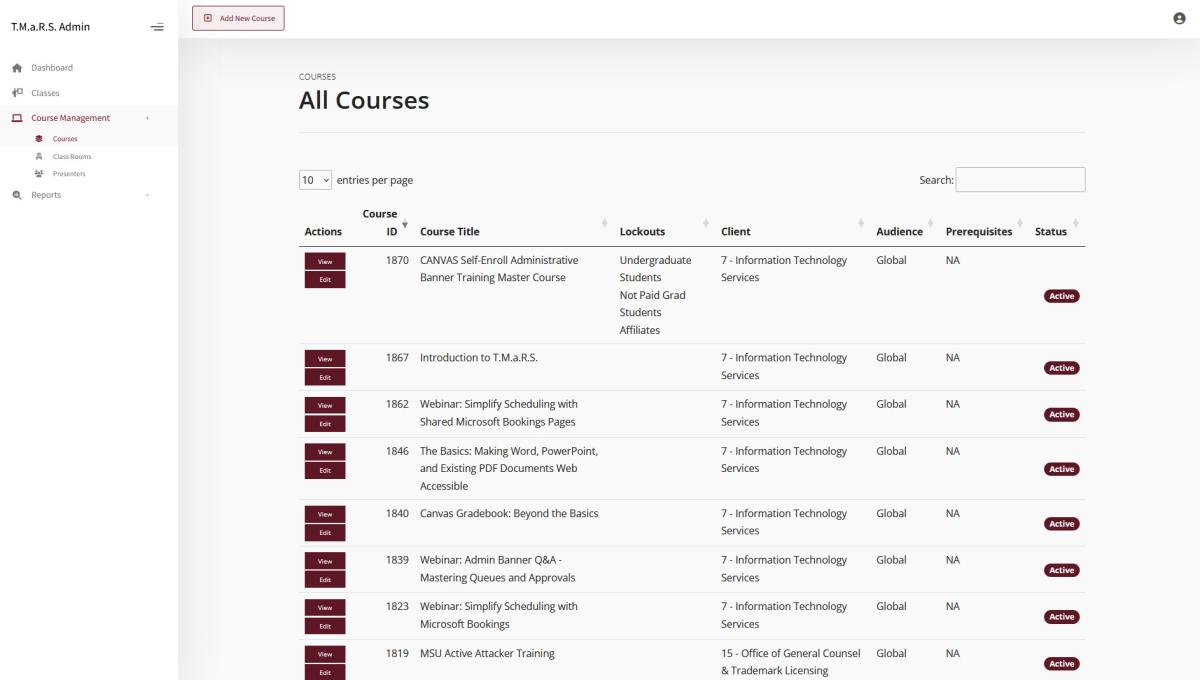
All Courses Overview Page

Creating a New Course

To create a new course:

  1. Navigate to Course Management → Courses
  2. Click the Add New button at the top of the page
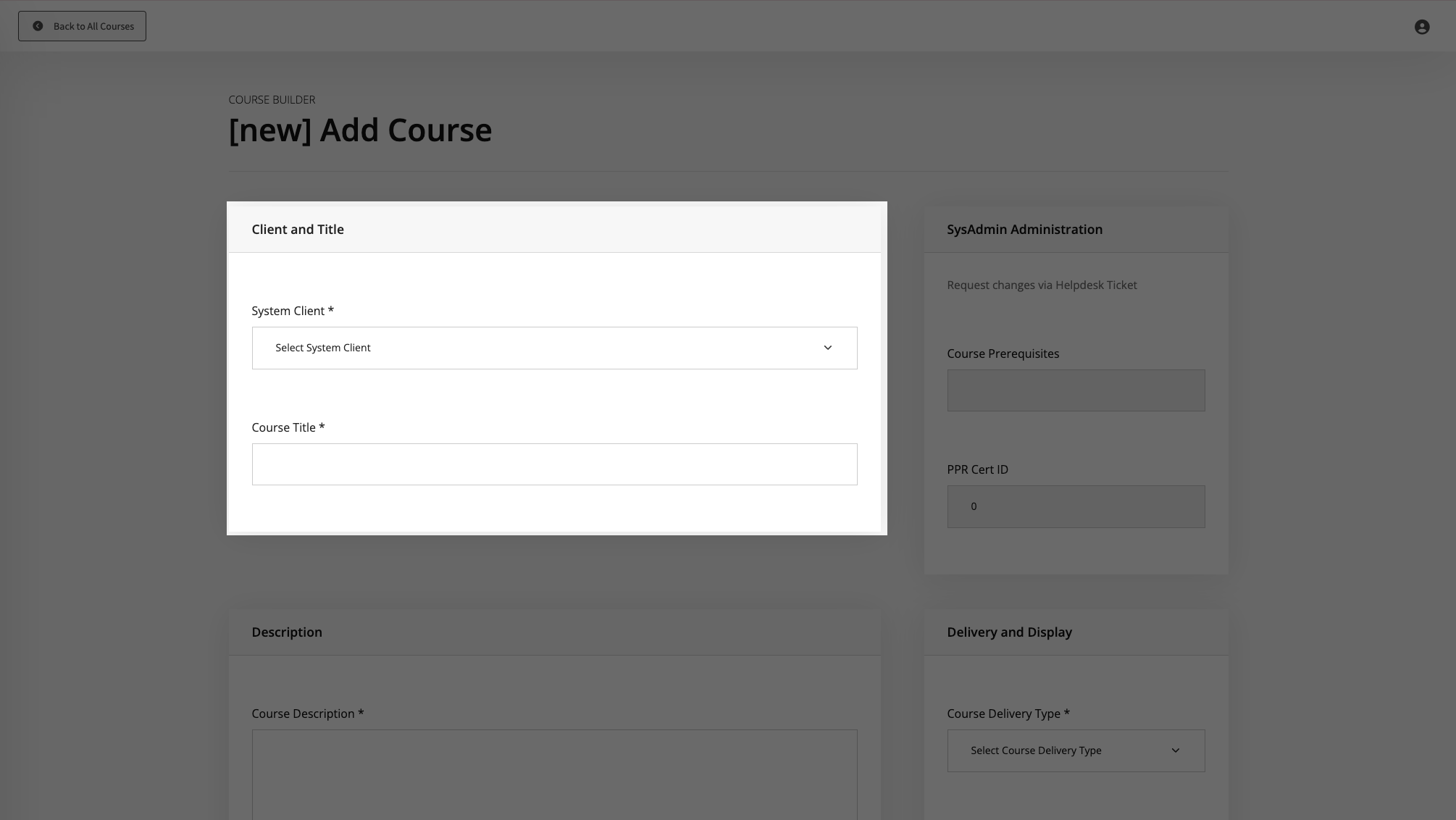
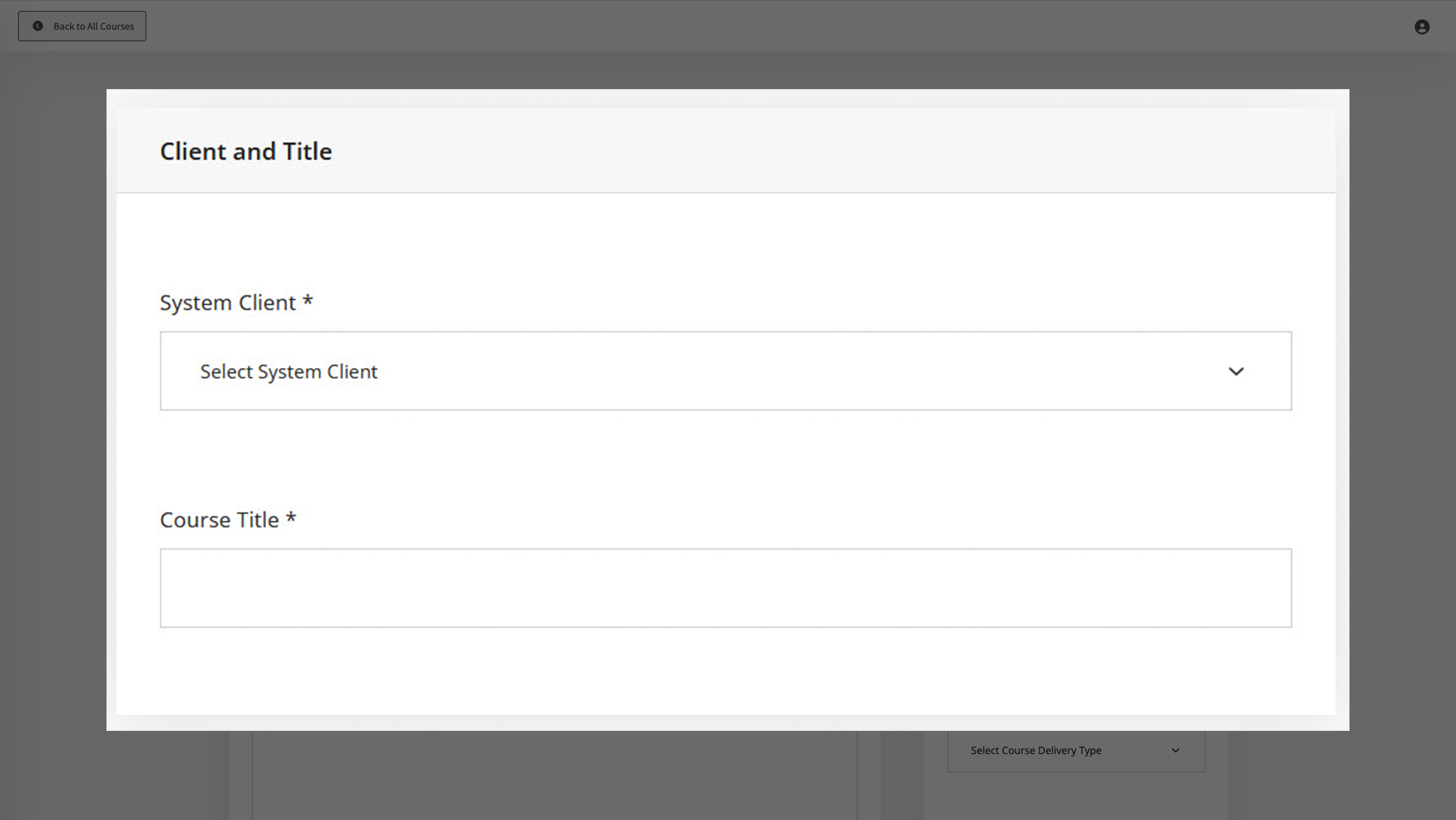
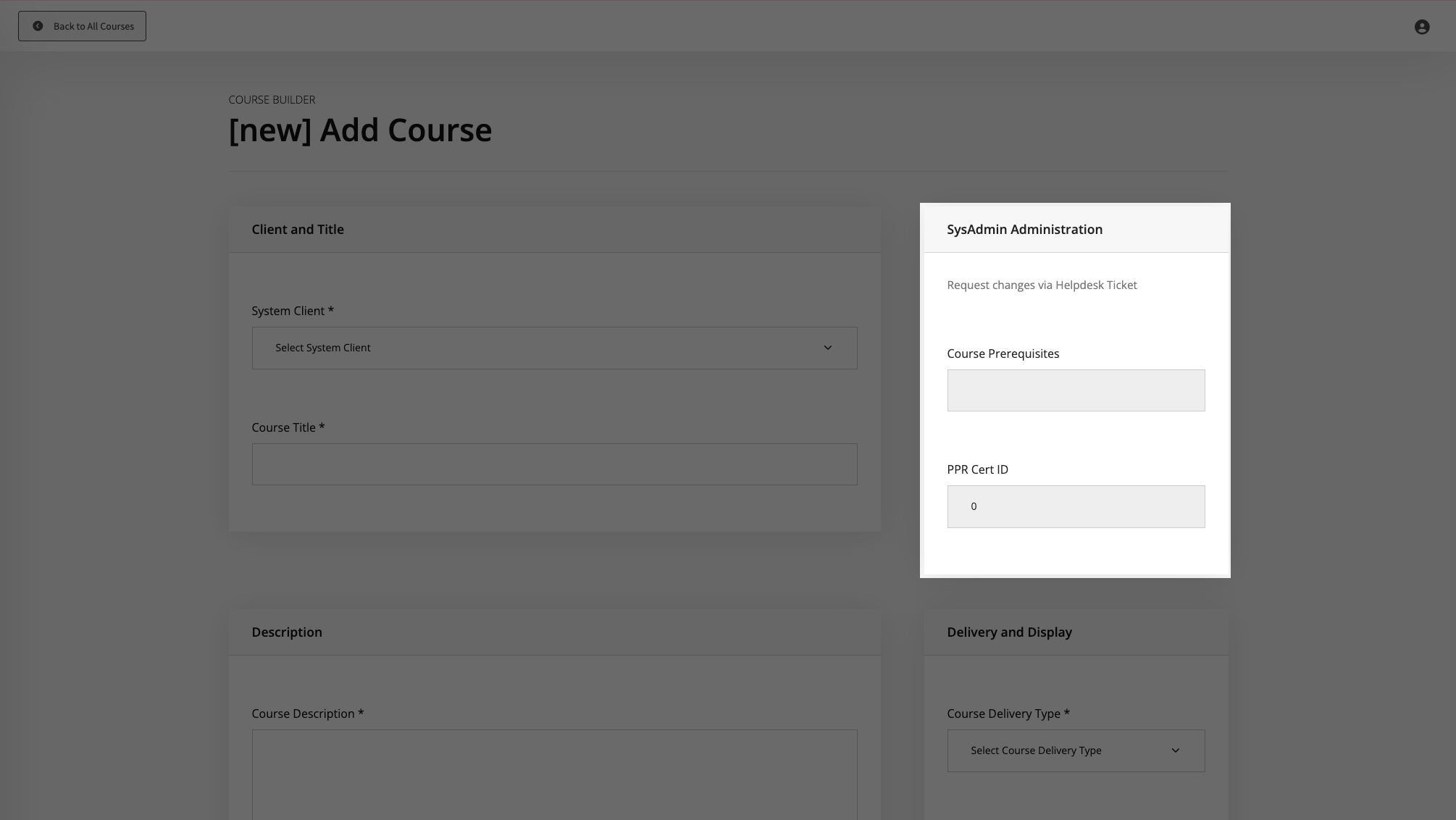
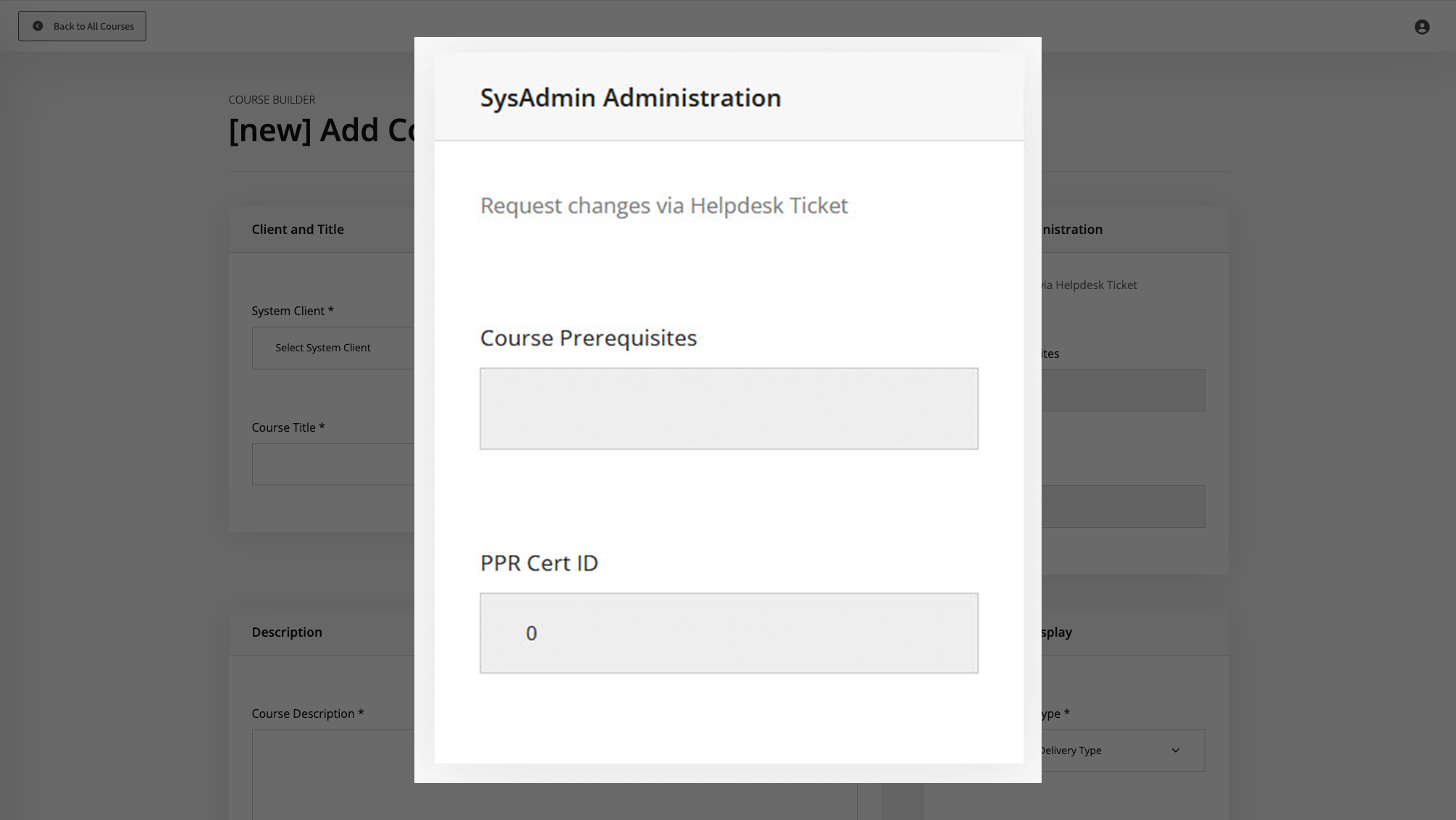
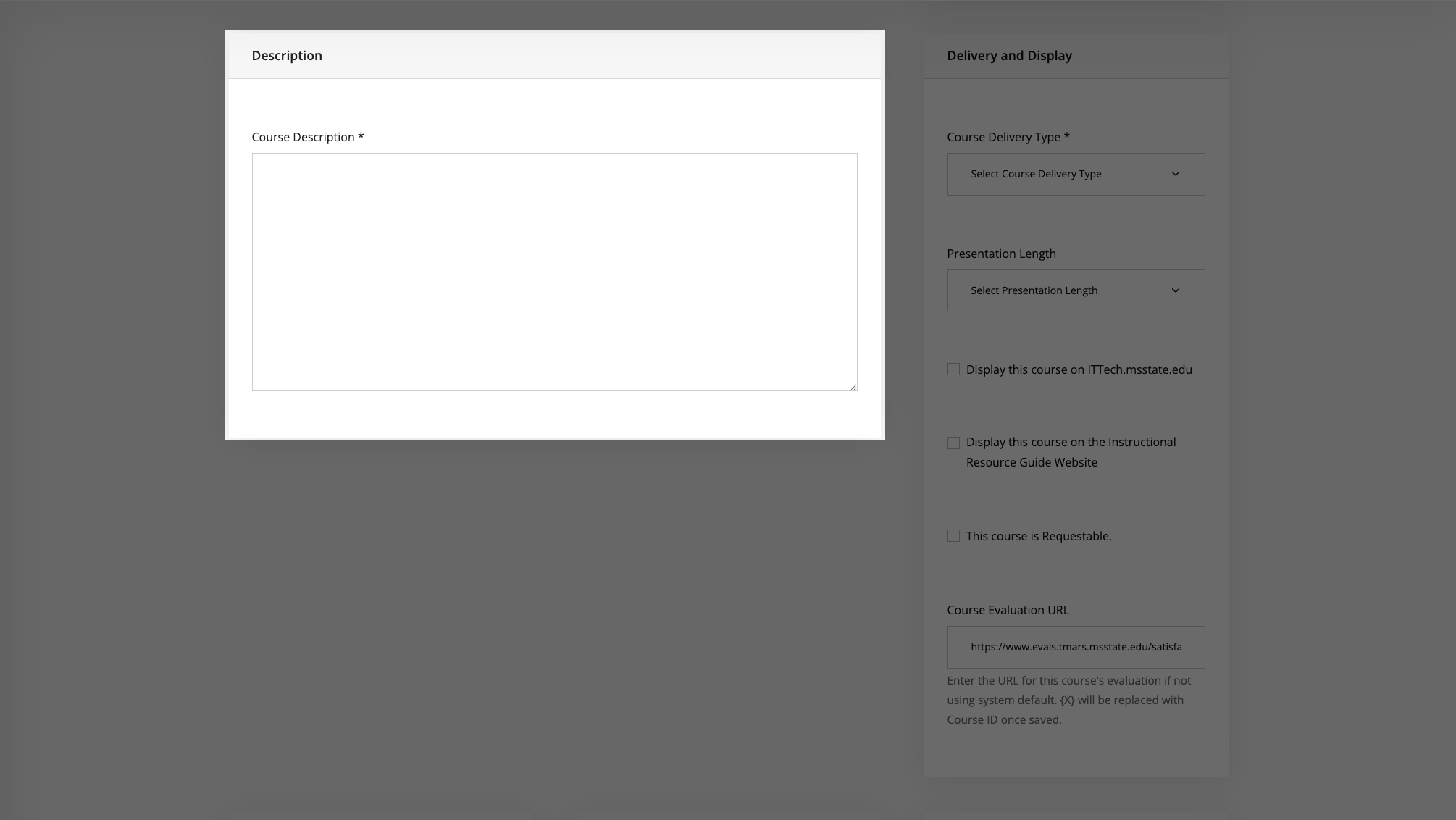
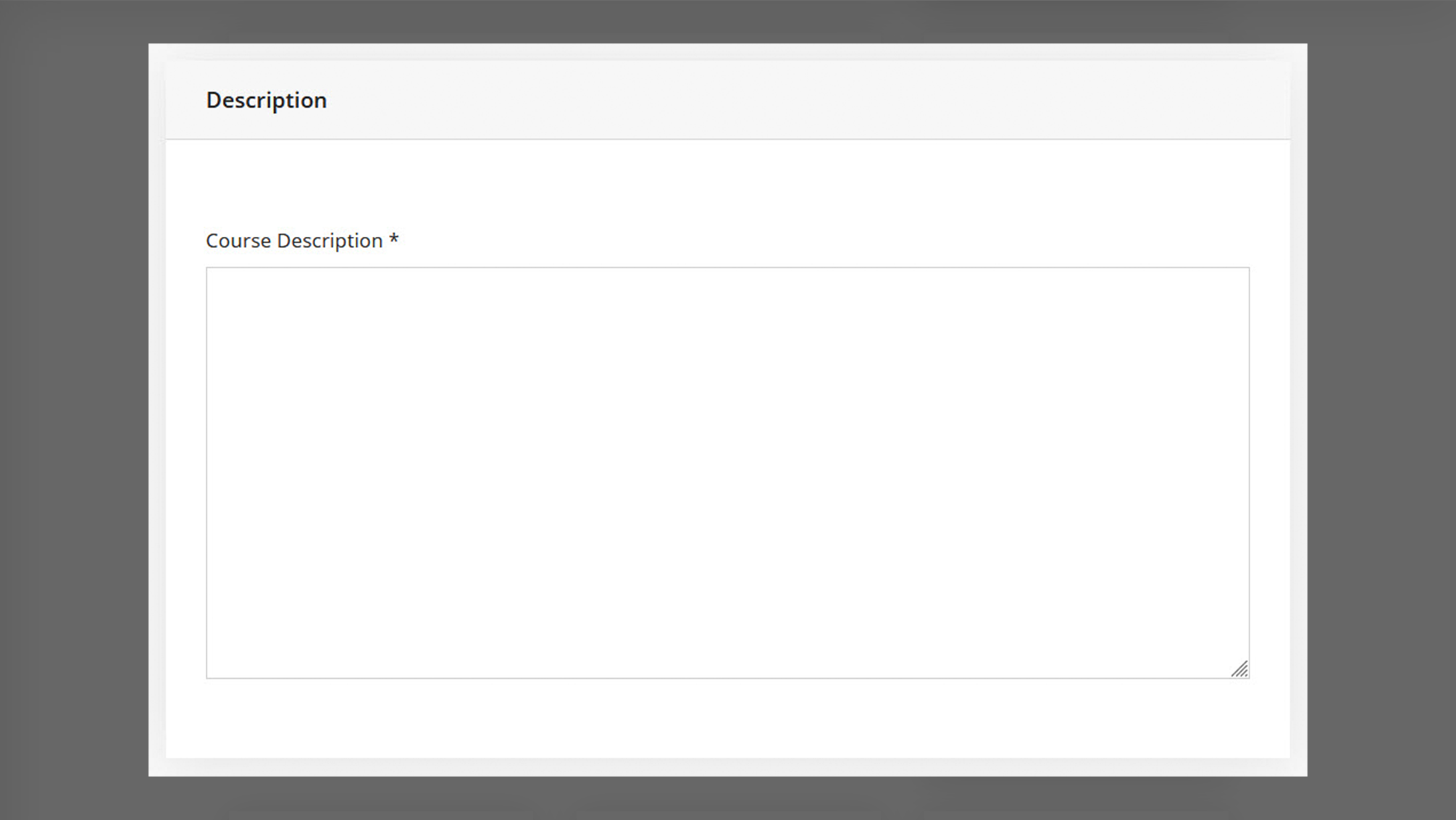
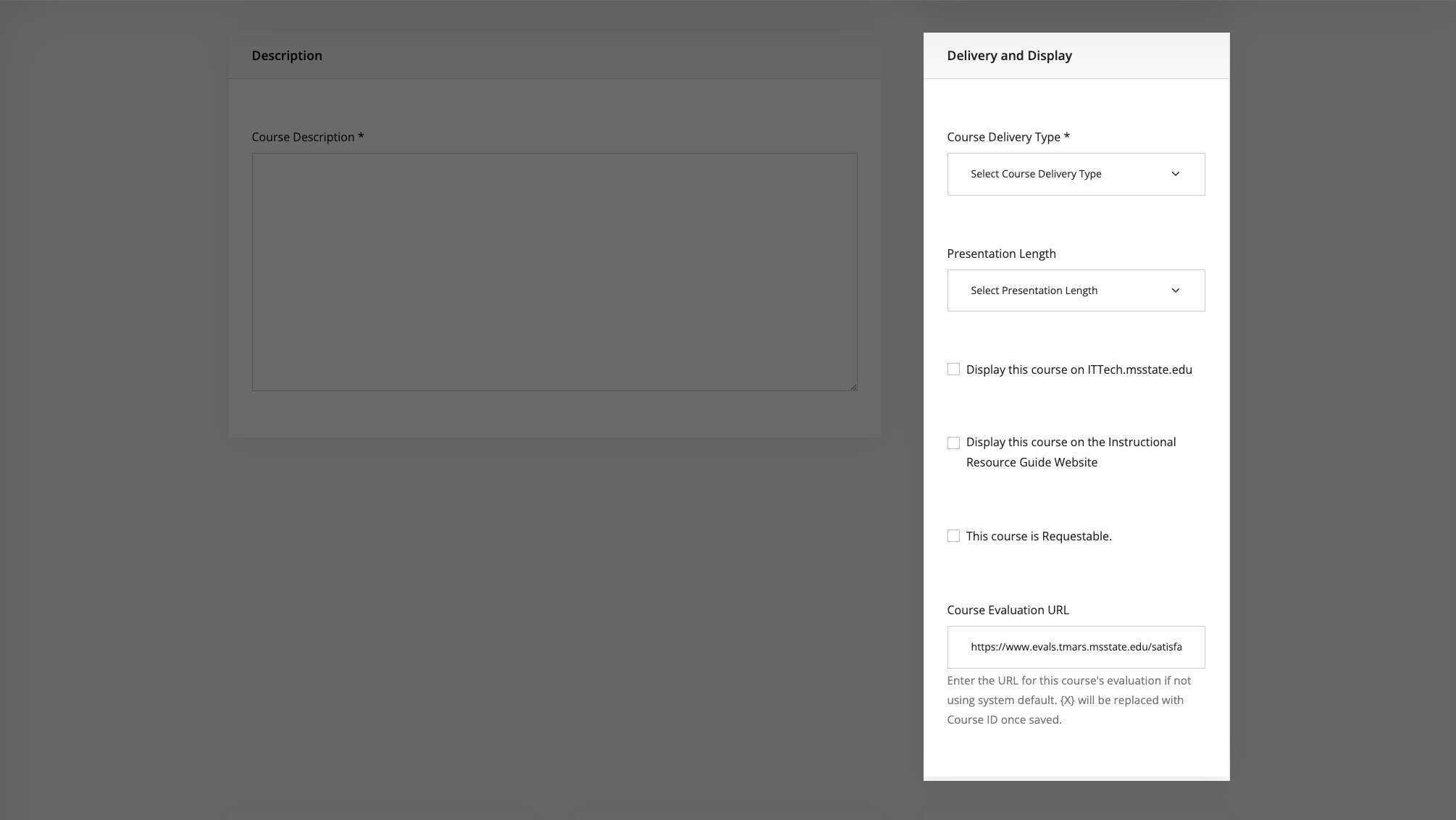
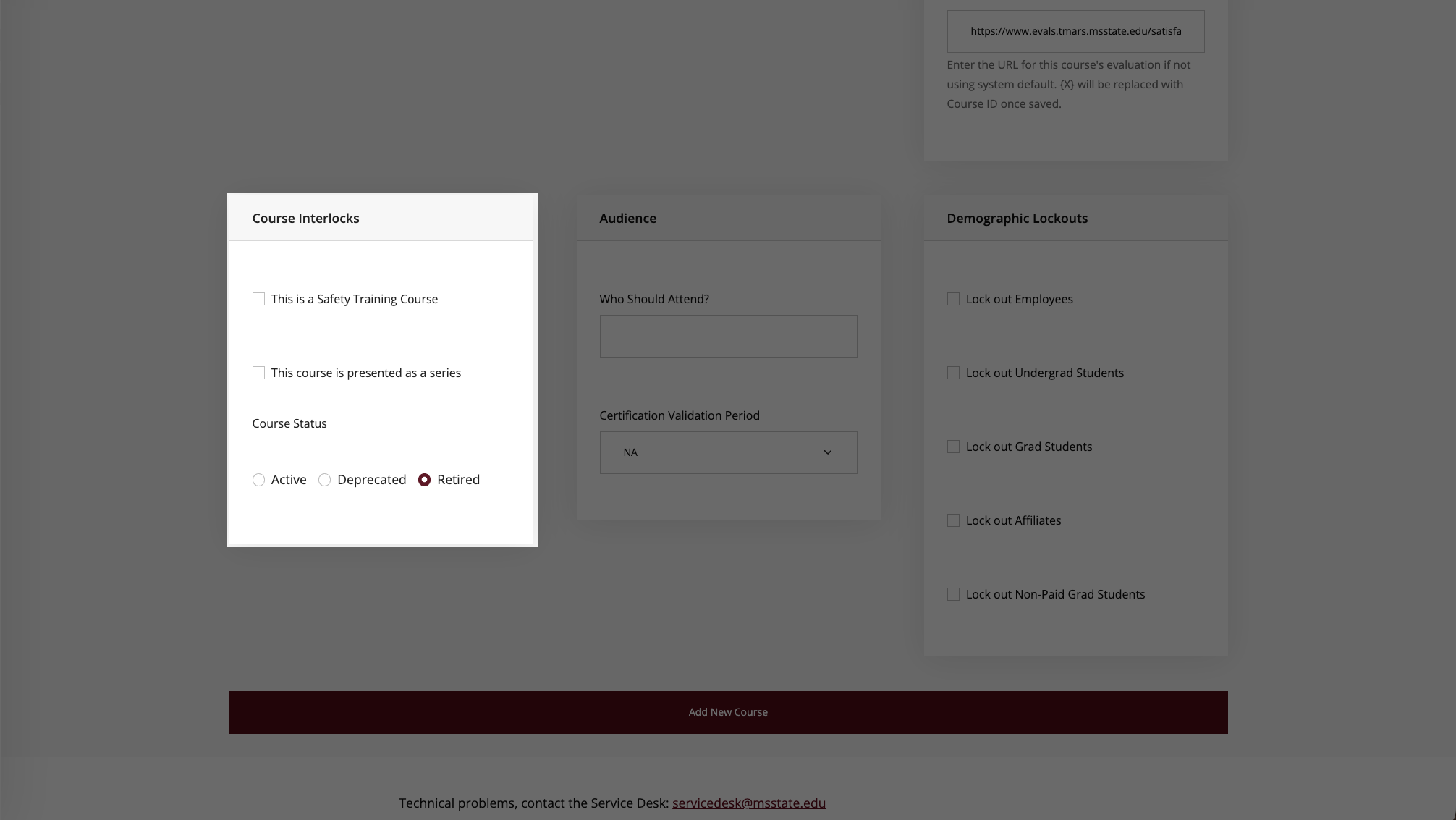
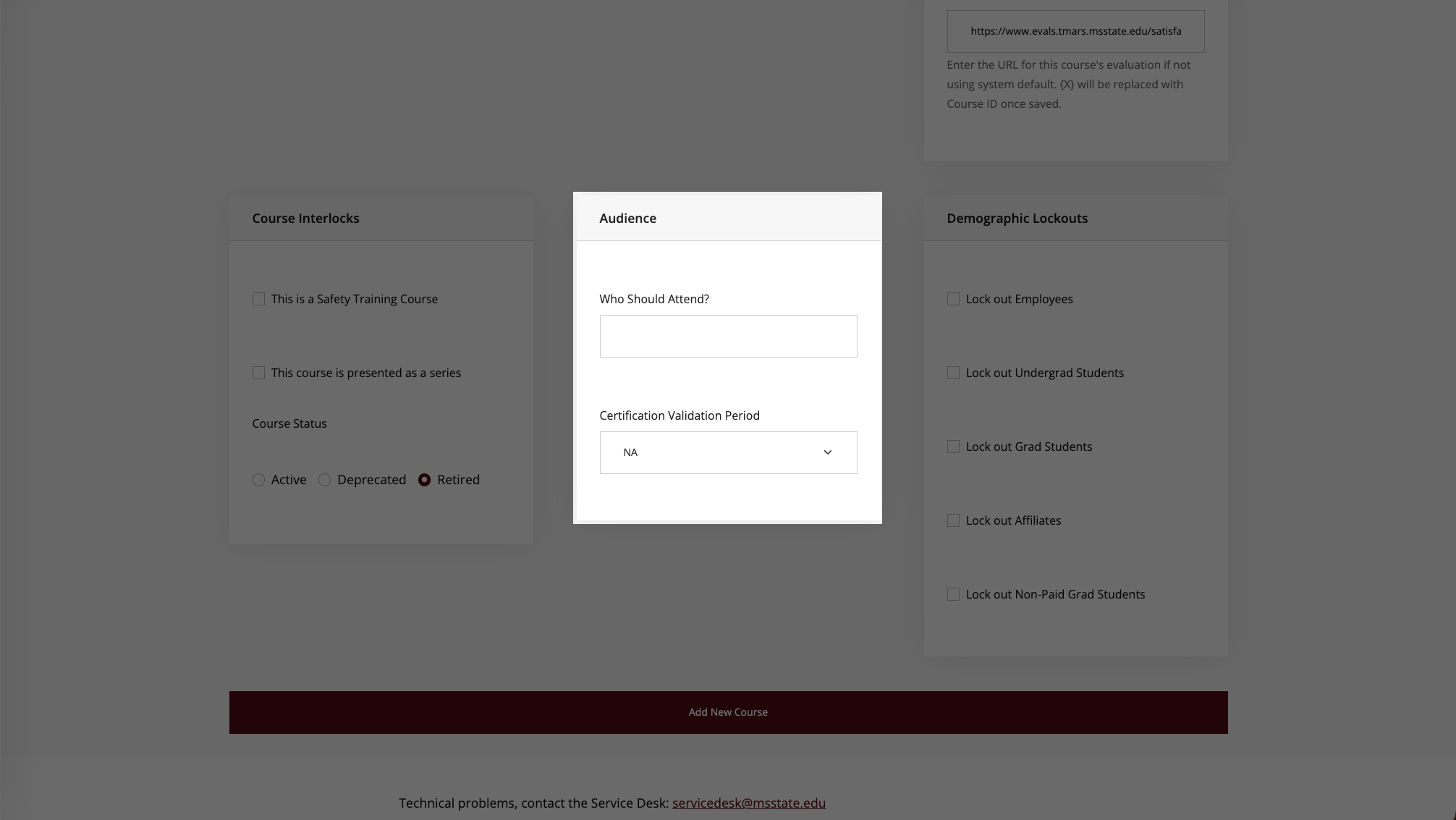
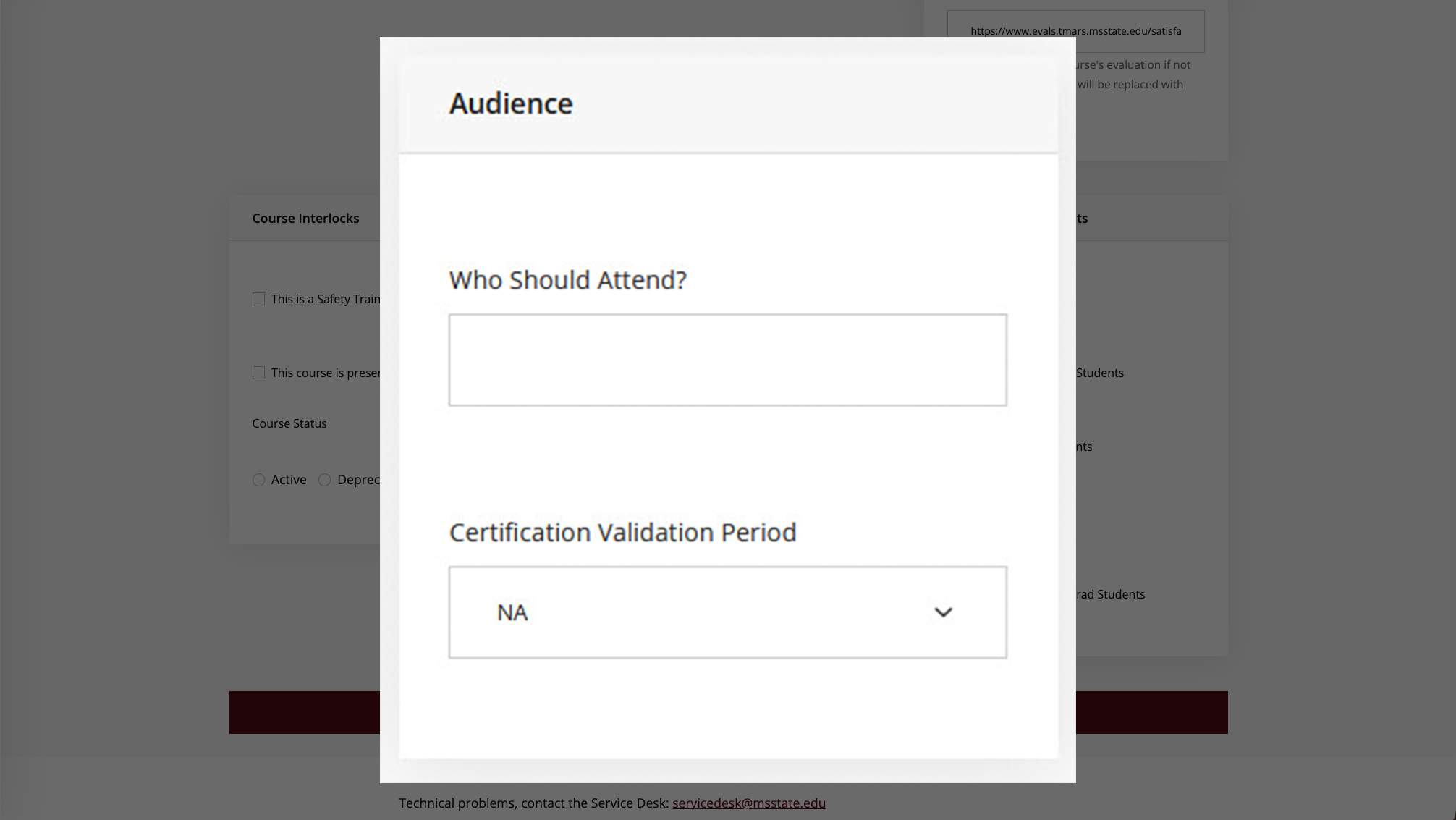
  3. Complete all required fields across the seven sections
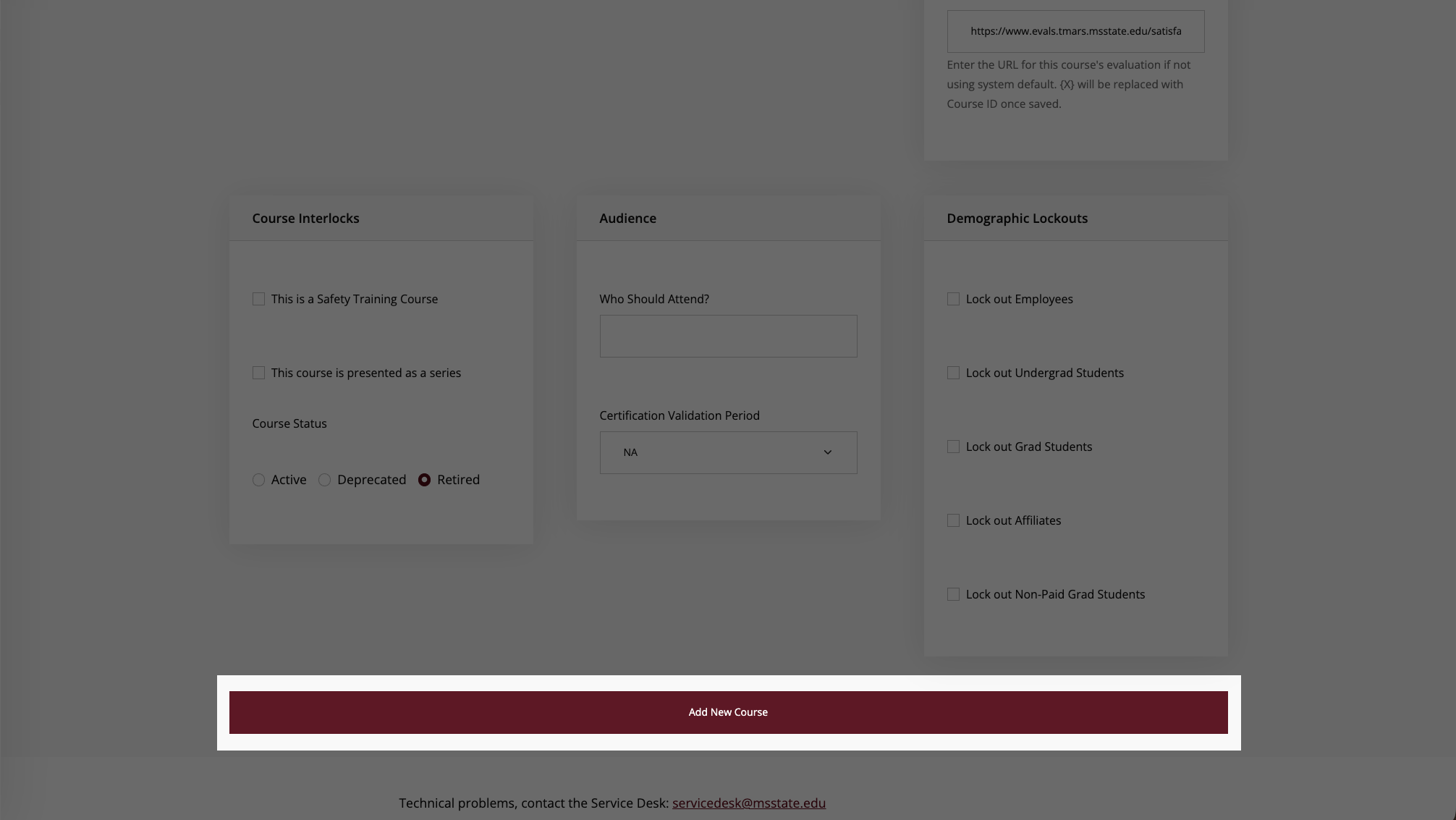
  4. Click Add New Course at the bottom to save

Editing Courses

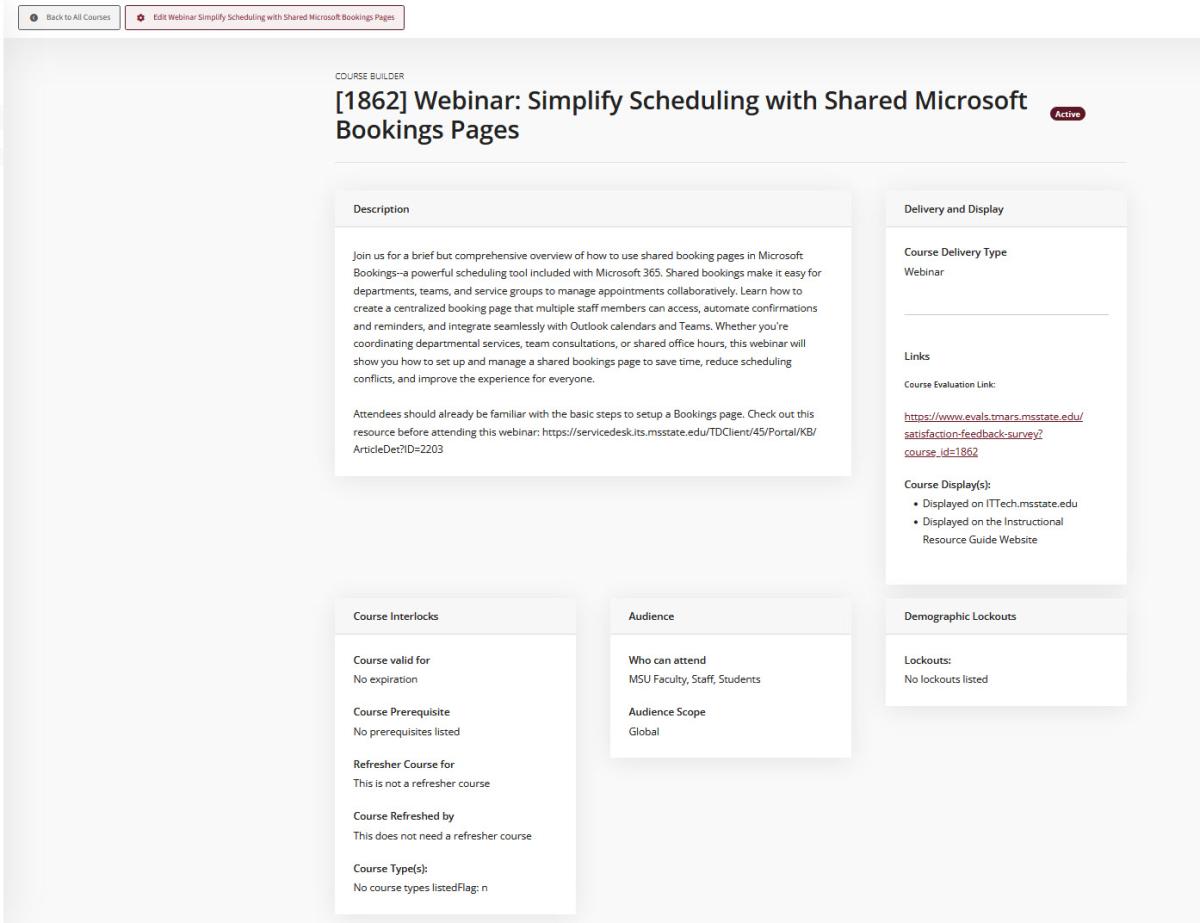
Viewing and Making Changes

To view a course without editing:

  1. Navigate to Course Management → Courses
  2. Find the course in the table
  3. Click the View button in the Actions column

To edit an existing course:

  1. Navigate to Course Management → Courses
  2. Find the course in the table (use search if needed)
  3. Click the Edit button in the Actions column
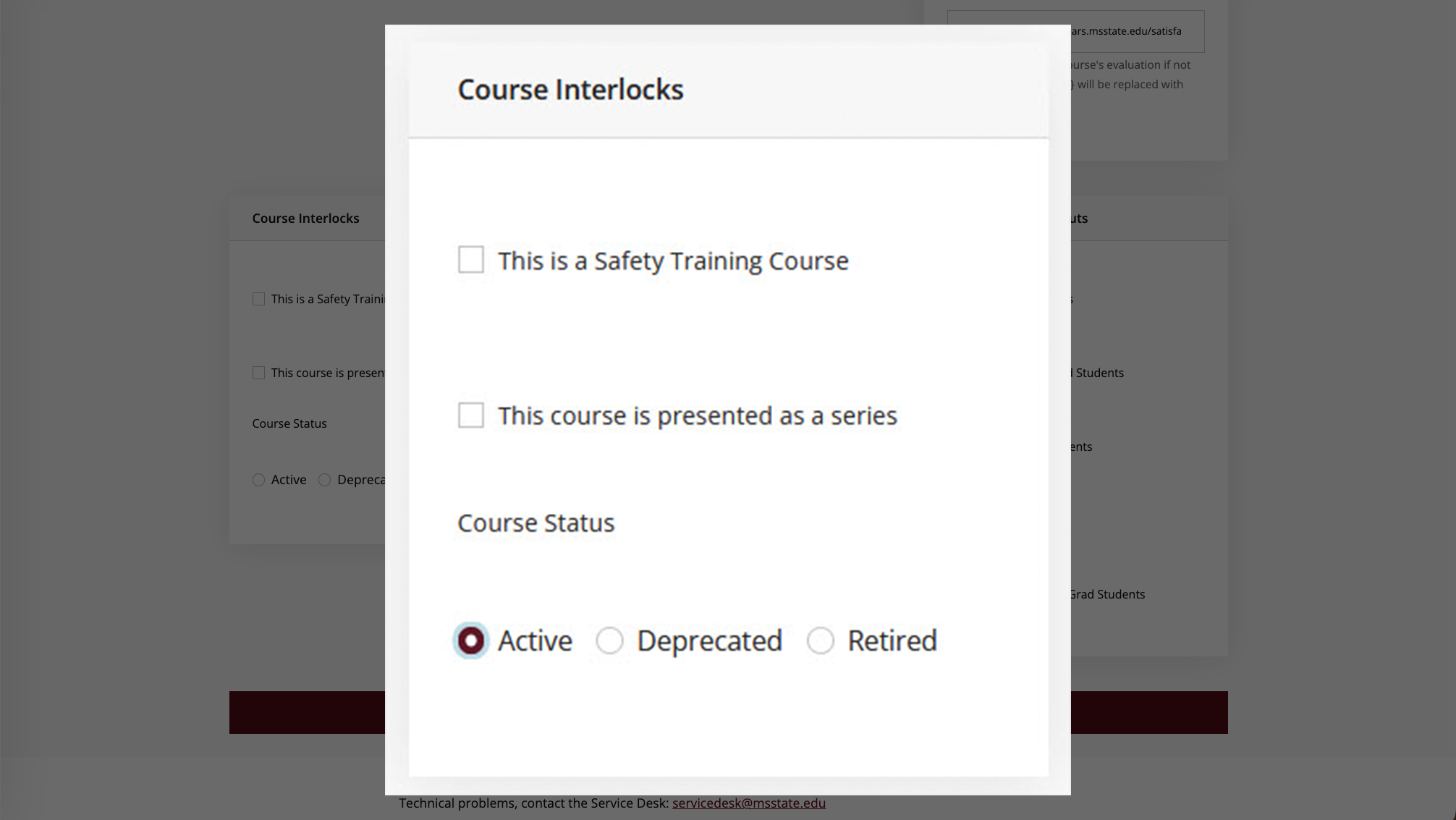
  4. Make your changes to any of the seven sections
  5. Click Update Course at the bottom to save
Edit existing course page