Get Started

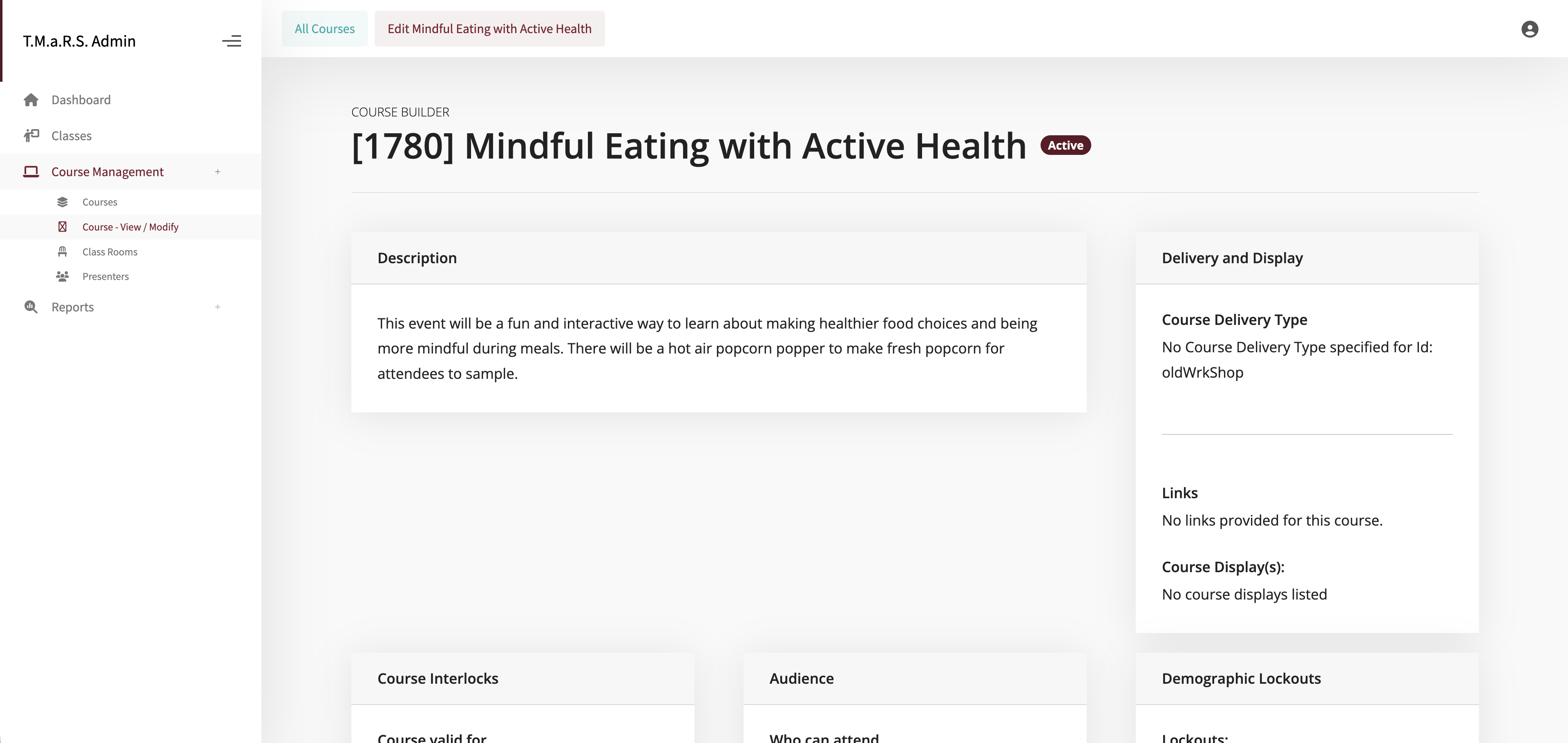
Edit existing course page

What is TMaRS?

TMaRS (Training Management and Reporting System) is Mississippi State University's comprehensive platform for organizing and facilitating training across campus. As an administrator, you can create courses, schedule training sessions, manage enrollments, track attendance, generate reports, and communicate with participants.

Two Sides of TMaRS

Admin Side: Where you work - managing courses, classes, enrollments, and reports (you're here!)

User Side: Where employees browse available training, enroll in sessions, and view their training history

Accessing the System

Login Requirements

  • URL: https://admin.tmars.msstate.edu
  • Network: Must be on MSU Network or connected via VPN
  • Credentials: Your MSU NetID and password

After Login

Once logged in, you'll see the admin dashboard with navigation based on your assigned role and permissions. Your view may differ from other administrators depending on your organizational client and role.

Client-Specific Access

TMaRS is a multi-tenant system. You may have different roles in different organizational clients. For example, you might be a Senior Admin for ITS but only have Reports access for General Counsel. Always check which client you're working in.

Understanding Your Role

TMaRS uses a Role-Based Access Control (RBAC) system where your role determines what you can see and do. Your permissions are based on attributes assigned to you within each organizational client.

Common Admin Roles

Role What You Can Do
Admin Create/edit courses and classes, manage enrollments, view reports, manage locations and presenters
Senior Admin All Admin permissions plus Rep Chart access
Instructor View and manage classes you're assigned to teach, mark attendance, view enrollment
Executive Instructor Instructor permissions plus ability to create classes for courses you've taught
Reports View certification expirations and training reports

Check Your Permissions

Your actual permissions are determined by specific attributes assigned to your account. The navigation menu you see reflects what you can access. If you need additional access, contact your TMaRS system administrator.

Key Concepts

Understanding these fundamental concepts will help you navigate TMaRS effectively:

Courses vs Classes

Concept What It Is Example
Course A training catalog template that defines what will be taught. Think of it as the curriculum or syllabus. "Data Privacy 101", "Leadership Fundamentals", "Safety Training"
Class/Session A specific scheduled instance of a course with a date, time, location, and instructor. "Data Privacy 101 on Dec 15, 2025 at 2:00 PM in Room 301"

Remember This!

You must create a Course before you can create a Class. Courses are the templates, Classes are the scheduled offerings. Think of it like: Courses are the "what", Classes are the "when and where".

Enrollments & Attendance

Enrollment: When someone registers for a class (either self-registration or admin-added)

Attendance: Marking who actually showed up to the class session

Status Options: Listed, Not Open for Enrollment, Tentative, Waiting List, Canceled, No Show, Canceled by Participant

Certifications

Some courses issue certifications upon completion. These can have expiration dates and require renewal. The system automatically tracks certification status and can send expiration warnings.

Clients (Organizations)

TMaRS is multi-tenant, meaning different organizations (clients) use the system. Examples: ITS, General Counsel, Human Resources. You may have different roles in different clients.

Common Workflows

Here are the typical tasks you'll perform as an administrator, in the order you'll likely do them:

Setting Up Resources (One-Time Setup)

  1. Add Training Rooms/Locations - Where training will be held
  2. Add Presenters/Facilitators - Who will teach the training

See the Resources section for detailed instructions

Creating Training Content

  1. Create a Course - Define what will be taught, prerequisites, certification requirements
  2. Schedule a Class - Pick a course and schedule a specific date/time/location
  3. Assign Instructors - Assign facilitators to the class

See the Courses and Classes sections for detailed instructions

Managing Enrollments

  1. Review Registrations - See who has enrolled
  2. Manually Add Participants - Register people who didn't self-enroll
  3. Mark Attendance - After the class, mark who attended
  4. Update Enrollment Status - Mark no-shows, cancellations, etc.

See the Enrollments section for detailed instructions

Communications

  1. Send Emails to Class Participants - With filtering by enrollment status
  2. Automatic Notifications - System sends confirmations, reminders, certificates automatically

See the Communications section for detailed instructions

Reporting

  1. Run Reports - Compliance, completion rates, certifications
  2. Export Data - Download reports for sharing

See the Reporting section for detailed instructions